
Migrate data to Supabase: CSV import best practices
The Supabase dashboard has a 100MB limit and no column mapping. Here's how to handle real-world data migrations without the headaches.

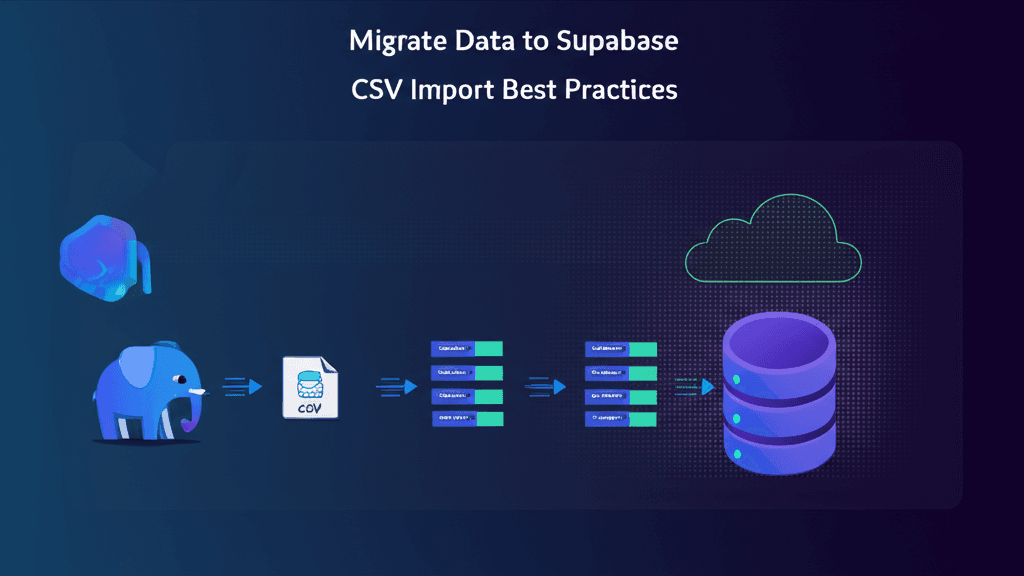
Moving data to Supabase from another database, spreadsheet, or legacy system? The built-in dashboard import works fine for small, clean files. But real-world migrations involve messy column names, files over 100MB, and data that needs validation before it hits your tables.
This guide covers what Supabase's built-in import can and can't do, plus practical alternatives for migrations that exceed its limits.
The problem with Supabase's built-in CSV import
Supabase's dashboard import is designed for quick, small imports during development. According to Supabase's official documentation:
"Supabase dashboard provides a user-friendly way to import data. However, for very large datasets, this method may not be the most efficient choice, given the size limit is 100MB. It's generally better suited for smaller datasets and quick data imports."
For migrations, you'll run into several limitations:
- 100MB file size limit: Large migrations fail silently when files exceed this threshold
- No column mapping: Your CSV headers must match your table columns exactly. If your source system uses
first_namebut your Supabase table hasfirstName, you need to manually rename columns first - CSV import only at table creation: You can't easily append data to existing tables through the dashboard
- No data validation: Type mismatches and bad data go straight into your table without warning
- JSONB truncation: Values larger than 10,240 characters in JSONB columns are silently truncated, causing data loss without any error message
- Large file instability: Users report the dashboard becomes unstable around 250-450k records
One Reddit user attempting a 6GB migration reported that imports "start breaking around 250-450k records" with no progress indication.
Migration approaches compared
| Feature | Supabase Dashboard | PostgreSQL COPY | ImportCSV |
|---|---|---|---|
| File size limit | 100MB | No limit | No limit (chunked) |
| Column mapping | No (exact match required) | No | Yes (AI-assisted) |
| Data validation | No | No | Yes (custom rules) |
| Excel support | No (CSV only) | No | Yes (.xlsx, .csv) |
| End-user facing | No (admin only) | No | Yes (embeddable) |
| JSONB handling | Truncates >10KB | Full support | Full support |
| Technical level | Beginner | Intermediate | Beginner |
Migration checklist before importing
Before starting any Supabase migration, prepare your data:
-
Clean up your source file
- Remove merged cells and hidden rows (common in Excel exports)
- Trim trailing whitespace
- Check for 'nan' or empty strings that should be NULL
-
Map source columns to target schema
- Document which source columns map to which Supabase columns
- Identify columns that need renaming or transformation
-
Verify data types
- String values in numeric columns will cause errors
- Date formats must match PostgreSQL expectations
- JSONB columns with values over 10KB need special handling
-
Plan for large files
- Files over 100MB need an alternative to dashboard import
- Consider splitting into batches or using a tool with chunked uploads
-
Disable triggers for large imports
- Triggers slow down bulk inserts significantly
-- Disable triggers on a specific table
ALTER TABLE your_table DISABLE TRIGGER ALL;

-- After import completes
ALTER TABLE your_table ENABLE TRIGGER ALL;
Option 1: PostgreSQL COPY command
For developers comfortable with the command line, PostgreSQL's COPY command handles large files without size limits:
psql -h db.yourproject.supabase.co -U postgres -d postgres \
  -c "\COPY your_table FROM '/path/to/file.csv' WITH (FORMAT csv, HEADER true)"
Pros:
- No file size limit
- Fast for large datasets
- Direct database access
Cons:
- Requires direct database access
- No column mapping (headers must match exactly)
- No validation (errors abort the entire import)
- Not accessible to non-technical team members
Option 2: Supabase API batch inserts
Build a custom script that reads your CSV and inserts in batches:
import { createClient } from '@supabase/supabase-js';
import { parse } from 'csv-parse/sync';
import { readFileSync } from 'fs';

const supabase = createClient(
  process.env.SUPABASE_URL!,
  process.env.SUPABASE_SERVICE_KEY!
);

const csvContent = readFileSync('data.csv', 'utf-8');
const records = parse(csvContent, { columns: true });

// Insert in batches of 1000
const batchSize = 1000;
for (let i = 0; i < records.length; i += batchSize) {
  const batch = records.slice(i, i + batchSize);
  const { error } = await supabase
    .from('your_table')
    .insert(batch);

  if (error) {
    console.error(`Batch ${i / batchSize} failed:`, error);
  }
}
Pros:
- Handles any file size
- Can add custom validation logic
- Works with service role key
Cons:
- Requires writing custom code for each migration
- No built-in column mapping
- Manual error handling
- Time investment for each migration
Option 3: ImportCSV with Supabase destination
ImportCSV provides a drop-in component that connects directly to Supabase and handles the limitations mentioned above.
Step 1: Get your Supabase credentials
From your Supabase dashboard, navigate to Settings > API and copy:
- Project URL
- Service role key (for backend imports) or anon/public key (for client-side)
Step 2: Add Supabase as a destination
In ImportCSV, add Supabase as a destination using your credentials. ImportCSV will connect directly to your database.
Step 3: Create an importer with your schema
Define the columns that map to your Supabase table. ImportCSV's AI-assisted column mapping handles mismatched headers automatically.
Step 4: Embed or use the hosted importer
import { CSVImporter } from '@importcsv/react';

function MigrationPage() {
  return (
    <CSVImporter
      importerKey="YOUR_KEY"
      onComplete={(data) => {
        console.log(`Migrated ${data.rowCount} rows to Supabase`);
      }}
    />
  );
}
Troubleshooting common migration issues
Type mismatches
Symptom: Import fails or data appears corrupted.
Cause: String values in numeric columns, or date formats that don't match PostgreSQL expectations.
Solution: Pre-validate your data or use a tool with type validation. ImportCSV shows type errors inline before data reaches your database.
Primary key conflicts
Symptom: Import fails with "duplicate key value violates unique constraint."
Cause: Your CSV contains IDs that already exist in the table.
Solution: Either remove the ID column and let Supabase auto-generate, or use an upsert strategy. When using the dashboard, import without the primary key column, then add an auto-increment ID column afterward.
Foreign key constraint failures
Symptom: Import fails with "insert or update violates foreign key constraint."
Cause: Referenced rows don't exist in the parent table.
Solution: Import parent tables first, then child tables. For complex relationships, consider temporarily disabling foreign key constraints:
-- Disable constraints (use carefully)
SET session_replication_role = 'replica';

-- Run your import

-- Re-enable constraints
SET session_replication_role = 'origin';
Timeout on large files
Symptom: Import hangs or fails silently after several minutes.
Cause: Supabase's SQL Editor has a 1-minute timeout, and large files exceed this limit.
Solution: Use chunked imports. Split your file into smaller batches, or use a tool like ImportCSV that handles chunking automatically.
When to use each approach
Use Supabase Dashboard when:
- Your file is under 100MB
- Column headers match your table exactly
- You're doing a quick, one-time import during development
Use PostgreSQL COPY when:
- You have direct database access
- You're comfortable with command-line tools
- Headers match and data is already clean
Use ImportCSV when:
- Files exceed 100MB
- Column names don't match your schema
- You need data validation before import
- Non-technical team members need to run migrations
- You're migrating from Excel files (.xlsx)
Get started
If the Supabase dashboard limits are blocking your migration, connect ImportCSV to your Supabase project.
Start free - no credit card required.
Related posts
Wrap-up
CSV imports shouldn't slow you down. ImportCSV aims to expand into your workflow — whether you're building data import flows, handling customer uploads, or processing large datasets.
If that sounds like the kind of tooling you want to use, try ImportCSV .