
How to validate CSV data before importing to Supabase
Supabase's CSV import has no validation preview - bad data goes straight to your database. Here's how to catch and fix errors before they hit your tables.

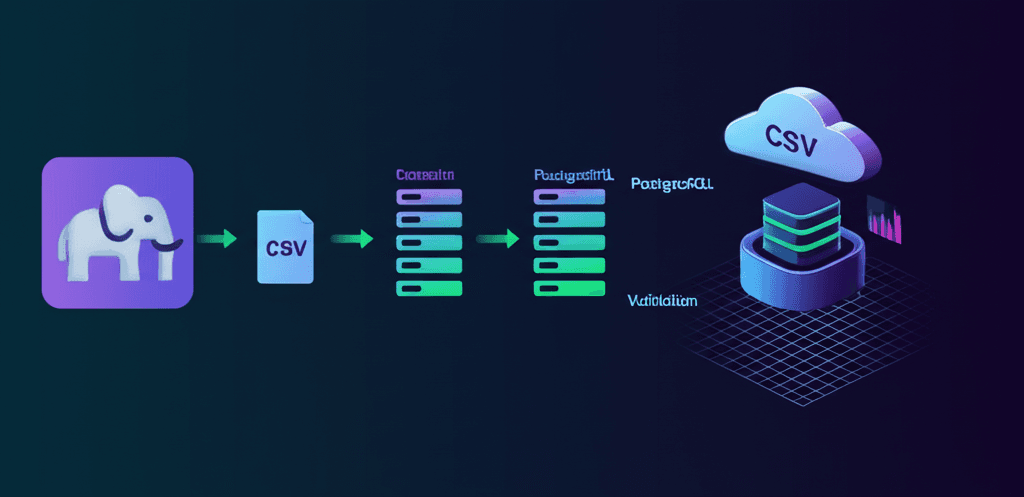
Supabase is great. Its CSV import validation isn't.
When you import a CSV through the Supabase dashboard, there's no preview. No validation. No way to see what will be inserted before it happens. Your data goes straight to the database, and you find out about problems only when the import fails - or worse, when bad data is already in your tables.
This guide covers the specific validation problems with Supabase's built-in CSV import and how to validate data before it reaches your database.
The validation gap in Supabase's CSV import
According to the Supabase documentation:
"Supabase dashboard provides a user-friendly way to import data. However, for very large datasets, this method may not be the most efficient choice, given the size limit is 100MB."
But the 100MB limit is just the start. The bigger problem is what happens during the import:
- No data preview: You can't see what will be inserted before it happens
- No validation UI: Bad data goes straight to your table
- Database-level errors only: Validation happens at constraint level, not before
- All-or-nothing imports: One bad row fails the entire import
- Silent data loss: JSONB values over 10,240 characters may be truncated without warning
The column name problem
Supabase's CSV import has a quirk that creates long-term headaches: if your CSV headers are uppercase, the importer creates column names with double quotes.
From GitHub Issue #5482:
- A CSV with
NAME,EMAIL,PHONEheaders creates columns named"NAME","EMAIL","PHONE" - This forces you to quote column names in every SQL query:
SELECT "NAME" FROM contacts - There's no automatic column name normalization
- The only workaround is to manually edit your CSV before uploading
No column mapping
The Supabase dashboard requires headers to match table column names exactly:
- No UI to map CSV columns to different database columns
- No way to skip columns you don't need
- No option to reorder columns
- Case sensitivity creates the quoted column problem above
No way to fix errors
When Supabase encounters invalid data during import, you have limited options:
- The entire import fails on constraint errors
- You can't fix individual rows inline
- You must edit the source file and re-upload
- There's no indication of which rows will fail until they fail
Comparison: Supabase Dashboard vs ImportCSV
| Feature | Supabase Dashboard | ImportCSV |
|---|---|---|
| File size limit | 100MB | 10,000+ rows (chunked) |
| Column mapping | No (headers must match exactly) | Yes (AI-assisted, 95% accuracy) |
| Data validation | Database constraints only | Custom rules + inline fixing |
| Error handling | Entire import fails | Inline error correction |
| End-user facing | No (admin-only) | Yes (embeddable component) |
| Column name normalization | No (quotes uppercase) | Yes |
| Preview before insert | No | Yes |
Three ways to validate CSV data for Supabase
Option 1: Manual validation with Python
Developers often build custom validation scripts:
import pandas as pd

df = pd.read_csv('contacts.csv')

# Clean data
df = df.dropna(subset=['email'])  # Remove rows without email
df['email'] = df['email'].str.lower()  # Normalize
df.columns = df.columns.str.lower().str.replace(' ', '_')  # Fix headers

# Validate
invalid_emails = df[~df['email'].str.contains('@')]
if len(invalid_emails) > 0:
    print(f"Found {len(invalid_emails)} invalid emails")
This works, but requires Python knowledge, isn't reusable for end users, and must be maintained as your schema changes.
Option 2: Database constraints
You can add constraints to your Supabase table:
ALTER TABLE contacts
ADD CONSTRAINT email_format CHECK (email ~* '^[A-Za-z0-9._%+-]+@[A-Za-z0-9.-]+\.[A-Za-z]{2,}$');
This catches invalid data, but only at insert time. The entire import fails on the first bad row, with no way to fix individual errors.
Option 3: ImportCSV with validation rules
ImportCSV validates data before it reaches Supabase. Define validation rules in your schema, and users can fix errors inline without re-uploading.
import { CSVImporter } from '@importcsv/react';
import { z } from 'zod';

const contactSchema = z.object({
  name: z.string().min(1, "Name is required"),
  email: z.string().email("Invalid email format"),
  phone: z.string().optional()
});

function ContactImporter() {
  return (
    <CSVImporter
      importerKey="YOUR_KEY"
      schema={contactSchema}
      onComplete={(data) => {
        // Data is validated and typed
        console.log(`Imported ${data.length} contacts`);
      }}
    />
  );
}
The importer handles:
- AI column mapping: Maps messy headers like
E-mail Addressto youremailcolumn - Real-time validation: Shows errors as users review their data
- Inline error fixing: Users correct issues without re-uploading
- Type-safe validation: Zod schemas provide compile-time safety
How to connect ImportCSV to Supabase
Step 1: Get your Supabase credentials
From your Supabase dashboard, go to Settings > API and copy:
- Project URL: The URL of your Supabase project
- Anon key: For client-side imports (or service role key for server-side)
Step 2: Add Supabase as a destination
In your ImportCSV dashboard, go to Destinations > Add Destination > Supabase. Paste your project URL and API key.
Step 3: Define your validation schema
Set up columns that map to your Supabase table. Add validation rules for required fields, email formats, number ranges, or custom regex patterns.
Step 4: Embed the importer
Add the React component to your app. When users upload a CSV, they see a preview with validation errors highlighted. They can fix errors inline, map columns, and only valid data reaches your Supabase table.
Troubleshooting common validation issues
"Column does not exist" error
This happens when your CSV headers don't match table column names exactly. Uppercase headers are especially problematic - they create quoted column names that require quoting in all queries.
Fix: Use ImportCSV's column mapping to map any header format to your table columns without modifying the source file.
Import fails with no error message
Data type mismatches often cause the Supabase dashboard to hang without showing an error. For example, a string value in a column defined as float4.
Fix: ImportCSV validates data types before sending to Supabase and shows specific errors for each invalid cell.
JSONB data is missing or truncated
JSONB column values exceeding 10,240 characters may be truncated or lost entirely during dashboard import.
Fix: For complex nested data, use the Supabase API directly or ImportCSV's chunked upload which handles large fields correctly.
Foreign key constraint errors
You can't validate foreign key relationships before insert with the Supabase dashboard. Invalid references fail the entire import.
Fix: ImportCSV can validate against existing data in your Supabase tables before insert, catching relationship errors early.
When to use each approach
Use the Supabase dashboard when you're importing small, clean datasets as an admin and you control the CSV format.
Use database constraints when you want a safety net for all data entry methods, not just CSV imports.
Use ImportCSV when you need to give end users a way to import their own data, you want validation before data reaches your database, or you're tired of debugging import failures.
Get started
Connect your Supabase project to ImportCSV in 2 clicks. Define your validation schema once, then give users an importer that catches errors before they hit your database.
Start free - no credit card required.
Related posts
Wrap-up
CSV imports shouldn't slow you down. ImportCSV aims to expand into your workflow — whether you're building data import flows, handling customer uploads, or processing large datasets.
If that sounds like the kind of tooling you want to use, try ImportCSV .