
Build a CSV importer with Next.js and Vercel Postgres
Learn how to build a complete CSV import pipeline using Next.js App Router and Vercel Postgres (via Neon). Includes client-side parsing, batch inserts, and error handling.

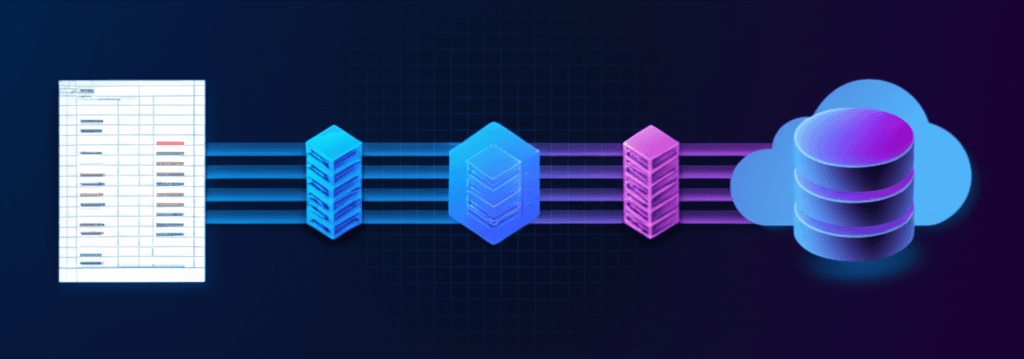
Importing CSV data into a database is a common requirement for dashboards, admin tools, and data migration workflows. This tutorial shows how to build a complete CSV import pipeline using Next.js and Vercel Postgres.
A note on Vercel Postgres: As of July 2025, Vercel has deprecated its native Postgres service and now directs users to the Vercel Marketplace for database providers. Neon is Vercel's recommended Postgres partner, and the @vercel/postgres package works with Neon databases through the Vercel integration. This tutorial covers both approaches.
Prerequisites
Before starting, you'll need:
- A Vercel account
- Node.js 18+
- A Neon database (created via Vercel Marketplace or directly at neon.tech)
- Basic familiarity with Next.js App Router
Architecture overview
The import pipeline consists of three parts:
- Client-side CSV parsing: Use PapaParse to parse the file in the browser, avoiding server memory limits
- API route handler: A Next.js route handler that receives parsed data and inserts it into Postgres
- Database connection: The
@vercel/postgrespackage connects to Neon via environment variables
This approach keeps large files from overwhelming your serverless functions by parsing on the client and sending data in batches.
Step 1: Set up your database
Option A: Via Vercel Marketplace (recommended)
- Go to your Vercel project dashboard
- Navigate to Storage tab
- Click "Create Database" and select a Postgres provider (Neon is recommended)
- Vercel automatically adds the required environment variables to your project
Option B: Direct Neon setup
- Create a free account at neon.tech
- Create a new project and database
- Copy your connection string
- Add it to your Vercel project environment variables:
POSTGRES_URL="postgres://user:password@ep-xxx.us-east-2.aws.neon.tech/dbname?sslmode=require"Neon's free tier includes 0.5 GB storage, 100 compute hours per project, and supports up to 100 projects with 10 branches each.
Create the target table
Connect to your database and create a table for the imported data. This example uses a customers table:
CREATE TABLE customers (
  id SERIAL PRIMARY KEY,
  name VARCHAR(255) NOT NULL,
  email VARCHAR(255) NOT NULL,
  company VARCHAR(255),
  created_at TIMESTAMP DEFAULT NOW()
);

CREATE INDEX idx_customers_email ON customers(email);
Step 2: Install dependencies
Install the required packages:
npm install @vercel/postgres papaparse
npm install -D @types/papaparse
Package versions used in this tutorial:
@vercel/postgres: 0.10.0papaparse: 5.5.3next: 16.1.1
Step 3: Create the CSV upload component
Create a client component that handles file selection and parsing. Create components/CsvImporter.tsx:
"use client";

import { useState, useCallback } from "react";
import Papa from "papaparse";

interface CustomerRow {
  name: string;
  email: string;
  company?: string;
}

interface ImportResult {
  success: boolean;
  imported: number;
  errors: string[];
}

export function CsvImporter() {
  const [file, setFile] = useState<File | null>(null);
  const [preview, setPreview] = useState<CustomerRow[]>([]);
  const [isImporting, setIsImporting] = useState(false);
  const [result, setResult] = useState<ImportResult | null>(null);

  const handleFileChange = useCallback(
    (e: React.ChangeEvent<HTMLInputElement>) => {
      const selectedFile = e.target.files?.[0];
      if (!selectedFile) return;

      setFile(selectedFile);
      setResult(null);

      // Parse for preview
      Papa.parse<CustomerRow>(selectedFile, {
        header: true,
        skipEmptyLines: true,
        preview: 5, // Only parse first 5 rows for preview
        complete: (results) => {
          setPreview(results.data);
        },
      });
    },
    []
  );

  const handleImport = async () => {
    if (!file) return;

    setIsImporting(true);
    setResult(null);

    // Parse entire file
    Papa.parse<CustomerRow>(file, {
      header: true,
      skipEmptyLines: true,
      complete: async (results) => {
        const rows = results.data;
        const errors: string[] = [];
        let imported = 0;

        // Send in batches of 100
        const batchSize = 100;
        for (let i = 0; i < rows.length; i += batchSize) {
          const batch = rows.slice(i, i + batchSize);

          try {
            const response = await fetch("/api/import", {
              method: "POST",
              headers: { "Content-Type": "application/json" },
              body: JSON.stringify({ rows: batch }),
            });

            const data = await response.json();

            if (response.ok) {
              imported += data.imported;
            } else {
              errors.push(`Batch ${Math.floor(i / batchSize) + 1}: ${data.error}`);
            }
          } catch (err) {
            errors.push(`Batch ${Math.floor(i / batchSize) + 1}: Network error`);
          }
        }

        setResult({ success: errors.length === 0, imported, errors });
        setIsImporting(false);
      },
    });
  };

  return (
    <div style={{ maxWidth: "600px", margin: "0 auto" }}>
      <div
        style={{
          border: "2px dashed #ccc",
          borderRadius: "8px",
          padding: "40px 20px",
          textAlign: "center",
        }}
      >
        <input
          type="file"
          accept=".csv"
          onChange={handleFileChange}
          style={{ display: "none" }}
          id="csv-input"
        />
        <label htmlFor="csv-input" style={{ cursor: "pointer" }}>
          {file ? file.name : "Click to select a CSV file"}
        </label>
      </div>

      {preview.length > 0 && (
        <div style={{ marginTop: "20px" }}>
          <h3>Preview (first 5 rows)</h3>
          <table style={{ width: "100%", borderCollapse: "collapse" }}>
            <thead>
              <tr>
                <th style={{ border: "1px solid #ddd", padding: "8px" }}>Name</th>
                <th style={{ border: "1px solid #ddd", padding: "8px" }}>Email</th>
                <th style={{ border: "1px solid #ddd", padding: "8px" }}>Company</th>
              </tr>
            </thead>
            <tbody>
              {preview.map((row, i) => (
                <tr key={i}>
                  <td style={{ border: "1px solid #ddd", padding: "8px" }}>{row.name}</td>
                  <td style={{ border: "1px solid #ddd", padding: "8px" }}>{row.email}</td>
                  <td style={{ border: "1px solid #ddd", padding: "8px" }}>{row.company || "-"}</td>
                </tr>
              ))}
            </tbody>
          </table>

          <button
            onClick={handleImport}
            disabled={isImporting}
            style={{
              marginTop: "16px",
              padding: "12px 24px",
              backgroundColor: "#0070f3",
              color: "white",
              border: "none",
              borderRadius: "6px",
              cursor: isImporting ? "not-allowed" : "pointer",
              opacity: isImporting ? 0.6 : 1,
            }}
          >
            {isImporting ? "Importing..." : "Import to Database"}
          </button>
        </div>
      )}

      {result && (
        <div
          style={{
            marginTop: "20px",
            padding: "16px",
            borderRadius: "8px",
            backgroundColor: result.success ? "#d4edda" : "#f8d7da",
          }}
        >
          {result.success ? (
            <p>Successfully imported {result.imported} rows</p>
          ) : (
            <div>
              <p>Imported {result.imported} rows with errors:</p>
              <ul>
                {result.errors.map((err, i) => (
                  <li key={i}>{err}</li>
                ))}
              </ul>
            </div>
          )}
        </div>
      )}
    </div>
  );
}
Step 4: Create the API route handler
Create the API route that handles database inserts. Create app/api/import/route.ts:
import { sql } from "@vercel/postgres";
import { NextResponse } from "next/server";

// Increase timeout for large imports (default is 5 min on Hobby, max 13 min on Pro)
export const maxDuration = 60;

interface CustomerRow {
  name: string;
  email: string;
  company?: string;
}

export async function POST(request: Request) {
  try {
    const { rows } = (await request.json()) as { rows: CustomerRow[] };

    if (!rows || !Array.isArray(rows)) {
      return NextResponse.json(
        { error: "Invalid request: rows array required" },
        { status: 400 }
      );
    }

    // Validate rows before insert
    const validRows = rows.filter((row) => {
      return row.name && typeof row.name === "string" && row.email && typeof row.email === "string";
    });

    if (validRows.length === 0) {
      return NextResponse.json(
        { error: "No valid rows to import" },
        { status: 400 }
      );
    }

    // Insert rows one at a time using parameterized queries
    // This prevents SQL injection via the tagged template literal
    let imported = 0;
    for (const row of validRows) {
      await sql`
        INSERT INTO customers (name, email, company)
        VALUES (${row.name}, ${row.email}, ${row.company || null})
      `;
      imported++;
    }

    return NextResponse.json({ success: true, imported });
  } catch (error) {
    console.error("Import error:", error);
    return NextResponse.json(
      { error: error instanceof Error ? error.message : "Unknown error" },
      { status: 500 }
    );
  }
}
The sql tagged template literal from @vercel/postgres automatically parameterizes values, preventing SQL injection attacks. Never use string interpolation for user-provided values in SQL queries.
Step 5: Optimize with batch inserts
Individual inserts work but are slow for large files. For better performance, use batch inserts:
import { sql } from "@vercel/postgres";
import { NextResponse } from "next/server";

export const maxDuration = 60;

interface CustomerRow {
  name: string;
  email: string;
  company?: string;
}

export async function POST(request: Request) {
  try {
    const { rows } = (await request.json()) as { rows: CustomerRow[] };

    if (!rows || !Array.isArray(rows) || rows.length === 0) {
      return NextResponse.json(
        { error: "Invalid request: rows array required" },
        { status: 400 }
      );
    }

    // Validate and sanitize rows
    const validRows = rows
      .filter((row) => row.name && row.email)
      .map((row) => ({
        name: String(row.name).slice(0, 255),
        email: String(row.email).slice(0, 255),
        company: row.company ? String(row.company).slice(0, 255) : null,
      }));

    if (validRows.length === 0) {
      return NextResponse.json(
        { error: "No valid rows to import" },
        { status: 400 }
      );
    }

    // Build batch insert with proper escaping
    // Note: For production, consider using a query builder library
    const values = validRows
      .map(
        (row) =>
          `(${escapeString(row.name)}, ${escapeString(row.email)}, ${
            row.company ? escapeString(row.company) : "NULL"
          })`
      )
      .join(",\n");

    await sql.query(
      `INSERT INTO customers (name, email, company) VALUES ${values}`
    );

    return NextResponse.json({ success: true, imported: validRows.length });
  } catch (error) {
    console.error("Import error:", error);
    return NextResponse.json(
      { error: error instanceof Error ? error.message : "Unknown error" },
      { status: 500 }
    );
  }
}

function escapeString(value: string): string {
  // Escape single quotes by doubling them
  const escaped = value.replace(/'/g, "''");
  return `'${escaped}'`;
}
For production applications, consider using a query builder like Drizzle or Prisma that handles escaping and batch operations more safely.
Step 6: Add progress tracking
For large imports, show users the progress. Update the client component:
"use client";

import { useState, useCallback } from "react";
import Papa from "papaparse";

interface CustomerRow {
  name: string;
  email: string;
  company?: string;
}

interface ImportProgress {
  total: number;
  processed: number;
  imported: number;
  errors: string[];
}

export function CsvImporterWithProgress() {
  const [file, setFile] = useState<File | null>(null);
  const [progress, setProgress] = useState<ImportProgress | null>(null);
  const [isImporting, setIsImporting] = useState(false);

  const handleFileChange = useCallback(
    (e: React.ChangeEvent<HTMLInputElement>) => {
      const selectedFile = e.target.files?.[0];
      if (selectedFile) {
        setFile(selectedFile);
        setProgress(null);
      }
    },
    []
  );

  const handleImport = async () => {
    if (!file) return;

    setIsImporting(true);

    Papa.parse<CustomerRow>(file, {
      header: true,
      skipEmptyLines: true,
      complete: async (results) => {
        const rows = results.data;
        const batchSize = 100;
        let imported = 0;
        const errors: string[] = [];

        setProgress({ total: rows.length, processed: 0, imported: 0, errors: [] });

        for (let i = 0; i < rows.length; i += batchSize) {
          const batch = rows.slice(i, i + batchSize);

          try {
            const response = await fetch("/api/import", {
              method: "POST",
              headers: { "Content-Type": "application/json" },
              body: JSON.stringify({ rows: batch }),
            });

            const data = await response.json();

            if (response.ok) {
              imported += data.imported;
            } else {
              errors.push(data.error);
            }
          } catch (err) {
            errors.push("Network error during batch upload");
          }

          setProgress({
            total: rows.length,
            processed: Math.min(i + batchSize, rows.length),
            imported,
            errors,
          });
        }

        setIsImporting(false);
      },
    });
  };

  const progressPercent = progress
    ? Math.round((progress.processed / progress.total) * 100)
    : 0;

  return (
    <div style={{ maxWidth: "500px", margin: "0 auto" }}>
      <input type="file" accept=".csv" onChange={handleFileChange} />

      {file && (
        <button
          onClick={handleImport}
          disabled={isImporting}
          style={{ marginLeft: "10px" }}
        >
          {isImporting ? "Importing..." : "Start Import"}
        </button>
      )}

      {progress && (
        <div style={{ marginTop: "20px" }}>
          <div
            style={{
              width: "100%",
              height: "20px",
              backgroundColor: "#e0e0e0",
              borderRadius: "10px",
              overflow: "hidden",
            }}
          >
            <div
              style={{
                width: `${progressPercent}%`,
                height: "100%",
                backgroundColor: "#0070f3",
                transition: "width 0.3s",
              }}
            />
          </div>
          <p style={{ marginTop: "10px" }}>
            {progress.processed} of {progress.total} rows processed
            ({progress.imported} imported)
          </p>
          {progress.errors.length > 0 && (
            <p style={{ color: "red" }}>
              {progress.errors.length} error(s) occurred
            </p>
          )}
        </div>
      )}
    </div>
  );
}
Complete working example
Here's a page that ties everything together:
// app/import/page.tsx
import { CsvImporter } from "@/components/CsvImporter";

export default function ImportPage() {
  return (
    <main style={{ padding: "40px 20px" }}>
      <h1 style={{ textAlign: "center", marginBottom: "30px" }}>
        Import Customers from CSV
      </h1>
      <CsvImporter />
    </main>
  );
}
Troubleshooting
Connection errors
If you see "Connection refused" or similar errors:
- Verify your
POSTGRES_URLenvironment variable is set correctly - Check that your IP is allowed in Neon's connection settings (or enable "Allow all IPs")
- Ensure you're using
?sslmode=requirein your connection string
Function timeout for large files
Vercel functions have execution time limits:
| Plan | Default Duration | Max Duration |
|---|---|---|
| Hobby | 300s (5 min) | 300s (5 min) |
| Pro | 300s (5 min) | 800s (13 min) |
| Enterprise | 300s (5 min) | 800s (13 min) |
For very large imports, consider:
- Reducing batch size to 50 rows
- Using client-side chunking with smaller payloads
- Moving to a background job queue for enterprise-scale imports
Data type mismatches
If inserts fail due to type errors:
- Validate data types before insertion
- Use
COALESCEor handle null values explicitly - Ensure CSV column names match your expected schema
SQL injection with dynamic queries
The sql tagged template from @vercel/postgres safely parameterizes values:
// Safe - values are parameterized
await sql`INSERT INTO users (name) VALUES (${userInput})`;

// Unsafe - never do this with user input
await sql.query(`INSERT INTO users (name) VALUES ('${userInput}')`);
For batch inserts where you need to construct dynamic queries, use proper escaping or a query builder.
Next steps
- Add data validation before import (email format, required fields)
- Implement duplicate detection using
ON CONFLICT - Add support for updating existing records
- Store import history for audit purposes
- Explore ImportCSV docs
When to use a dedicated solution
Building a CSV importer from scratch works for basic use cases. However, production applications often need features that add significant complexity:
- Column mapping: Let users match CSV columns to your database schema
- Data validation: Validate emails, phone numbers, required fields with clear error messages
- Error handling: Show users exactly which rows failed and why
- Data transformation: Clean up formatting, merge columns, set defaults
ImportCSV provides a pre-built React component that handles these features out of the box. Instead of building and maintaining CSV import logic, you can add a production-ready importer with a few lines:
import { CSVImporter } from "@importcsv/react";

<CSVImporter
  onComplete={(data) => {
    // Data is validated and mapped to your schema
    await saveToDatabase(data);
  }}
/>
If CSV imports are core to your application, a dedicated solution can save weeks of development and ongoing maintenance.
Related posts
Wrap-up
CSV imports shouldn't slow you down. ImportCSV aims to expand into your workflow — whether you're building data import flows, handling customer uploads, or processing large datasets.
If that sounds like the kind of tooling you want to use, try ImportCSV .